Invite Users to Your Sitemap
At WriteMaps, we know that building a site architecture is rarely a solo mission. Whether you are pitching a new concept to a prospect, conducting a technical audit, or seeking final architecture sign-off from a client, collaboration is key for digital and creative agencies.
Our sharing features allow you to bring team members and clients directly into your workspace to streamline the delivery process.
How to Access the Share Settings
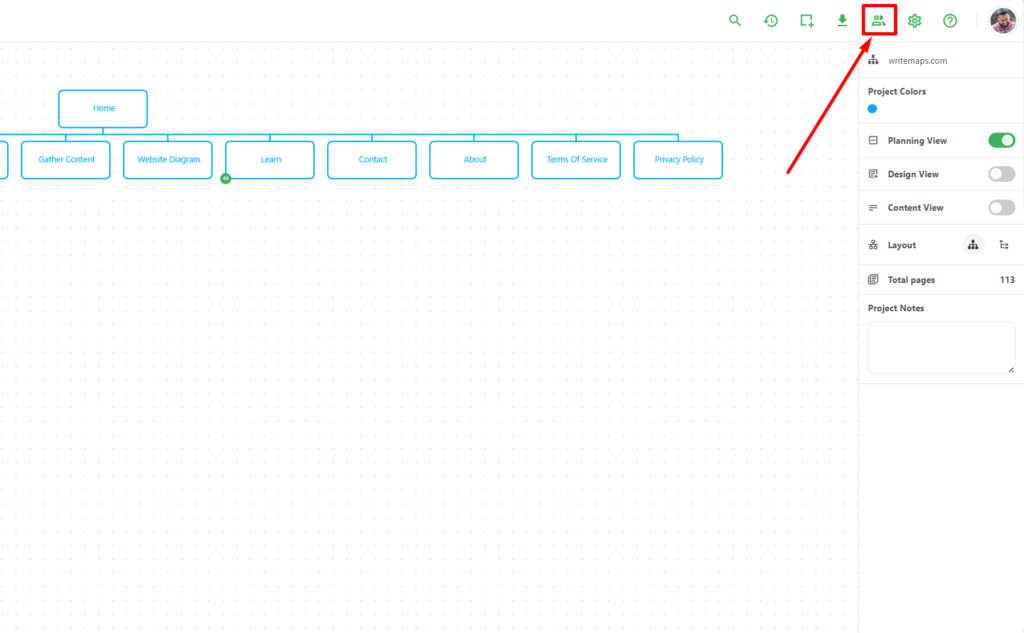
To start collaborating, you need to open the Share modal from within your project view.
- Open the sitemap you wish to share.
- Locate the top navigation bar on the right side of your screen.
- Click the Invite People icon (represented by a silhouette of two people).
Inviting New Collaborators
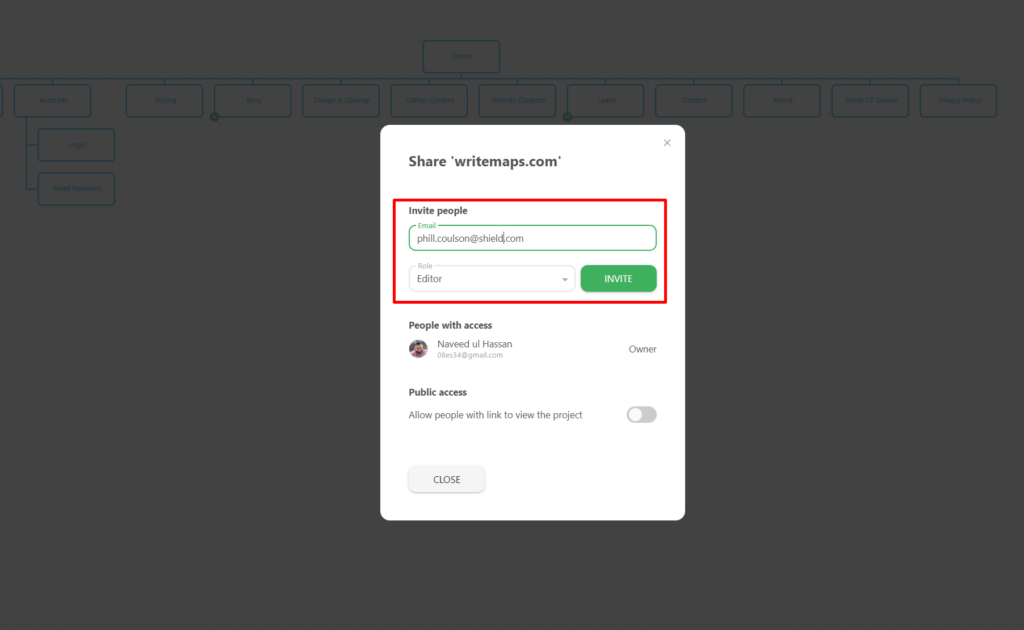
Once the share window is open, you can add specific individuals to your project via email.
- Enter Email Address: Type the email of the colleague or client you wish to invite in the Email field.
- Select a Role: Use the Role dropdown menu to define their level of access. For example, you can set them as an Editor if you want them to contribute to the map structure or content.
- Send Invitation: Click the green INVITE button. They will receive an email notification with a link to join the project.
Managing Access and Visibility
The Share modal also provides an overview of who currently has eyes on your project.
People with Access
Under this section, you will see a list of everyone who has been invited, including the Owner of the sitemap. This helps you keep track of project stakeholders at a glance.
Public Access
If you need to share your sitemap quickly without requiring the other person to log in (ideal for quick client reviews or pitches), you can use the Public access toggle.
- Toggle On: Generates a link that allows anyone with the URL to view the project.
- Toggle Off: Restricts access only to the specific people you have formally invited.
Pro-Tip for Agencies
When using WriteMaps for architecture sign-off, we recommend inviting your client as a Viewer or using the Public access link to ensure they can see the progress without accidentally moving pages or changing the structure you have carefully built.